
Appearance
输入动作程序化设计
v4 版本新增输入动作程序化能力,即通过指定待输入的字符序列,自动以动画模拟滑行或点击等方式完成输入过程。该功能是 release 构建即提供的用户级能力,主要用于输入练习演示(如教学引导、操作展示),后续版本将基于此能力提供完整的输入练习功能。核心思路是:将用户真实的手指操作抽象为可序列化的「动作脚本」,由播放引擎按脚本驱动键盘状态机和 UI 动画,产生与真人操作一致的视觉效果。
坐标无关设计:动作脚本只记录按键的语义标识(如 InputKey),不存储任何绝对坐标。回放时,播放器根据当前键盘状态动态查找按键的实时位置,从而消除按键布局变更、屏幕尺寸变化、手模式切换等因素导致的回放失效问题。这意味着同一份脚本可以在任意设备、任意布局下正确回放。
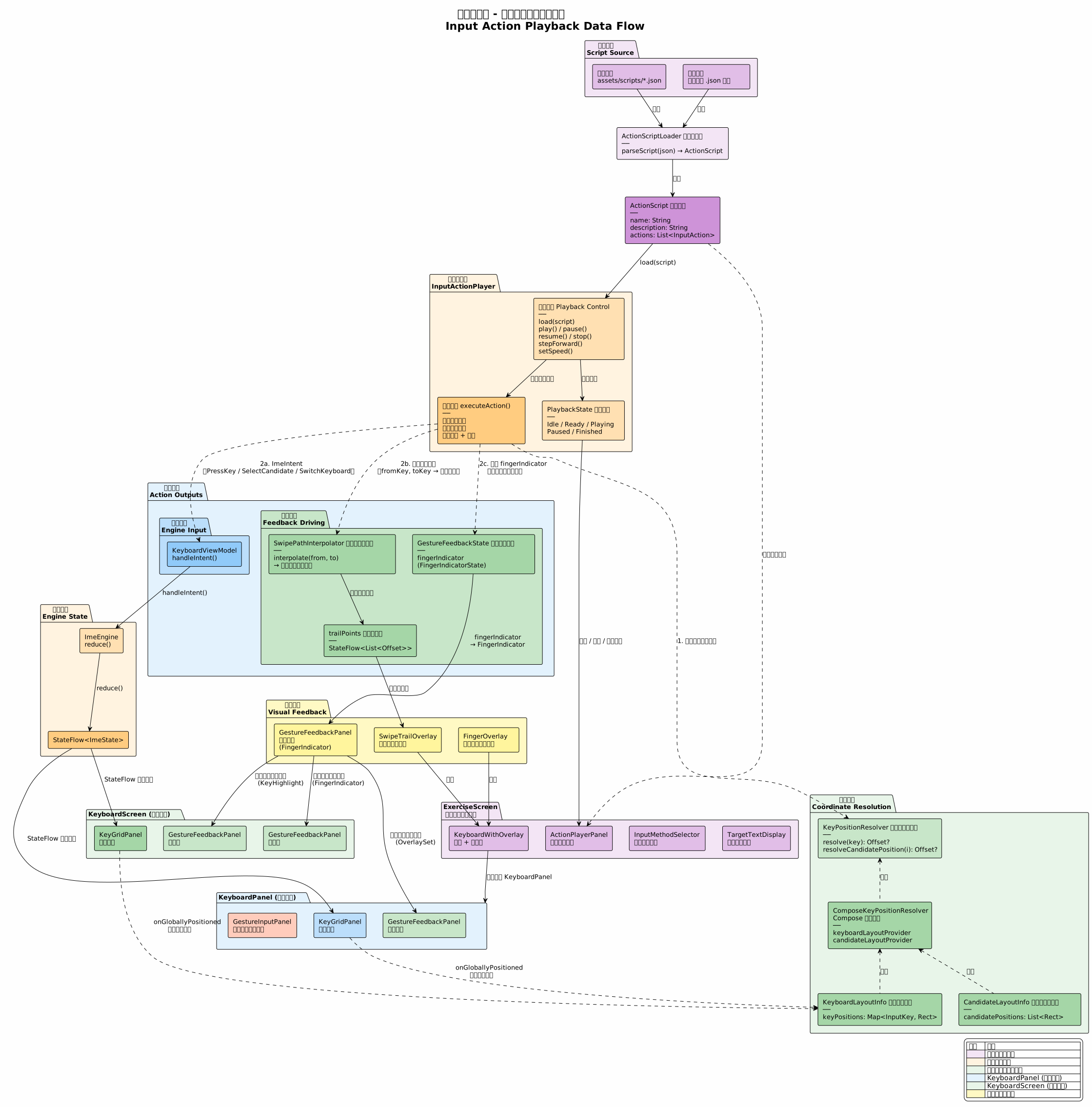
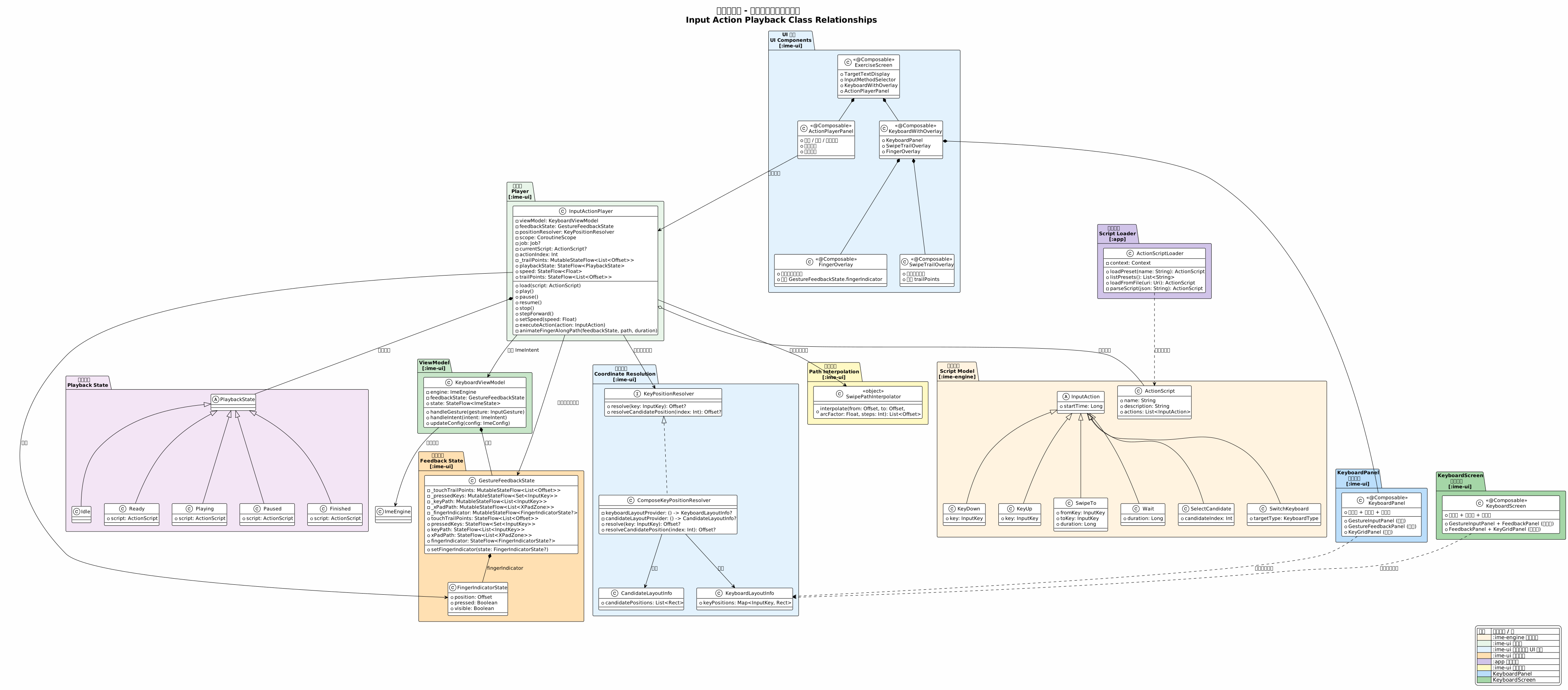
1. 坐标解析器
回放时根据当前键盘状态动态解析按键位置,是坐标无关设计的核心组件:
kotlin
/**
 * 按键位置解析器。
 *
 * 根据当前键盘状态(键盘类型、布局、手模式、屏幕尺寸等)
 * 动态查找按键的中心坐标。由于键盘布局可能因配置变更而改变,
 * 解析器总是在回放时实时查询,而非缓存编译期坐标。
 */
interface KeyPositionResolver {
    /**
     * 查找指定按键在当前键盘中的中心坐标。
     *
     * @param key 待查找的按键
     * @return 按键中心坐标,若按键在当前键盘中不存在则返回 null
     */
    fun resolve(key: InputKey): Offset?

    /**
     * 查找指定候选项在当前候选栏中的中心坐标。
     *
     * @param index 候选项索引
     * @return 候选项中心坐标,若索引越界则返回 null
     */
    fun resolveCandidatePosition(index: Int): Offset?
}

/**
 * 基于 Compose 布局的按键位置解析器实现。
 *
 * 通过 Compose 的布局系统(onGloballyPositioned / layoutInfo)
 * 获取各按键和候选项的实时位置,确保与屏幕上实际渲染位置一致。
 */
class ComposeKeyPositionResolver(
    private val keyboardLayoutProvider: () -> KeyboardLayoutInfo?,
    private val candidateLayoutProvider: () -> CandidateLayoutInfo?,
) : KeyPositionResolver {

    override fun resolve(key: InputKey): Offset? {
        val layout = keyboardLayoutProvider() ?: return null
        return layout.keyPositions[key]?.center
    }

    override fun resolveCandidatePosition(index: Int): Offset? {
        val layout = candidateLayoutProvider() ?: return null
        return layout.candidatePositions.getOrNull(index)?.center
    }
}

/**
 * 键盘布局信息,由 Compose 布局系统在每次重组后更新。
 * 包含当前键盘中所有按键的位置矩形。
 */
data class KeyboardLayoutInfo(
    val keyPositions: Map<InputKey, Rect>,
)

/**
 * 候选栏布局信息,由 Compose 布局系统在每次重组后更新。
 * 包含当前可见候选项的位置矩形。
 */
data class CandidateLayoutInfo(
    val candidatePositions: List<Rect>,
)2. 播放器(InputActionPlayer)
kotlin
/**
 * 输入动作播放器,坐标无关。
 *
 * 接收坐标无关的 ActionScript,按时间轴依次执行动作:
 * - 将 InputAction 转换为 ImeIntent 通过 KeyboardViewModel 发送到引擎
 * - 通过 KeyPositionResolver 在回放时动态解析按键坐标
 * - 同步驱动动画覆盖层(手指指示器、轨迹、高亮)
 * - 提供播放控制接口
 * release 构建中可用,用于输入练习演示。
 *
 * 坐标无关意味着:
 * - 同一脚本在不同屏幕尺寸的设备上均可正确回放
 * - 切换左右手模式后脚本仍有效(按键位置会动态重新解析)
 * - 键盘布局变更后脚本不会失效
 */
class InputActionPlayer(
    private val viewModel: KeyboardViewModel,
    private val feedbackState: GestureFeedbackState,
    private val positionResolver: KeyPositionResolver,
    private val scope: CoroutineScope,
) {
    private var job: Job? = null
    private var _playbackState = MutableStateFlow(PlaybackState.Idle)
    val playbackState: StateFlow<PlaybackState> = _playbackState.asStateFlow()

    private var _speed = MutableStateFlow(1.0f)
    val speed: StateFlow<Float> = _speed.asStateFlow()

    private var currentScript: ActionScript? = null
    private var actionIndex = 0

    // 滑行轨迹点,由播放器在执行 SwipeTo 时根据实时坐标生成
    private val _trailPoints = MutableStateFlow<List<Offset>>(emptyList())
    val trailPoints: StateFlow<List<Offset>> = _trailPoints.asStateFlow()

    fun load(script: ActionScript) {
        stop()
        currentScript = script
        actionIndex = 0
        _playbackState.value = PlaybackState.Ready(script)
    }

    fun play() {
        val script = currentScript ?: return
        if (_playbackState.value is PlaybackState.Playing) return

        _playbackState.value = PlaybackState.Playing(script)
        feedbackState.setFingerIndicator(FingerIndicatorState(
            position = Offset.Zero, pressed = false, visible = true
        ))

        job = scope.launch {
            val startTime = System.currentTimeMillis()
            val actions = script.actions

            while (actionIndex < actions.size) {
                val action = actions[actionIndex]

                // 等待到动作的执行时间
                val elapsed = System.currentTimeMillis() - startTime
                val delayMs = (action.startTime / _speed.value) - elapsed
                if (delayMs > 0) delay(delayMs)

                // 检查是否暂停
                if (_playbackState.value is PlaybackState.Paused) break

                // 执行动作
                executeAction(action)
                actionIndex++
            }

            feedbackState.setFingerIndicator(null)
            _playbackState.value = PlaybackState.Finished(script)
        }
    }

    fun pause() {
        job?.cancel()
        _playbackState.value = PlaybackState.Paused(currentScript!!)
    }

    fun resume() {
        play()
    }

    fun stop() {
        job?.cancel()
        feedbackState.setFingerIndicator(null)
        _trailPoints.value = emptyList()
        actionIndex = 0
        _playbackState.value = PlaybackState.Idle
    }

    fun stepForward() {
        val script = currentScript ?: return
        if (actionIndex >= script.actions.size) return

        executeAction(script.actions[actionIndex])
        actionIndex++
    }

    fun setSpeed(speed: Float) {
        _speed.value = speed.coerceIn(0.25f, 4.0f)
    }

    /**
     * 执行单个动作。
     *
     * 坐标无关的核心:每个动作执行时,通过 positionResolver
     * 查询按键的当前实时位置,而非使用预存的坐标。
     */
    private fun executeAction(action: InputAction) {
        when (action) {
            is InputAction.KeyDown -> {
                val position = positionResolver.resolve(action.key) ?: return
                feedbackState.setFingerIndicator(FingerIndicatorState(
                    position = position, pressed = true, visible = true
                ))
                viewModel.handleIntent(ImeIntent.PressKey(action.key, KeyGesture.Tap))
            }
            is InputAction.SwipeTo -> {
                val fromPosition = positionResolver.resolve(action.fromKey) ?: return
                val toPosition = positionResolver.resolve(action.toKey) ?: return

                // 根据实时坐标动态计算滑行路径
                val path = SwipePathInterpolator.interpolate(fromPosition, toPosition)
                _trailPoints.value = path

                // 沿路径动画移动手指
                scope.launch {
                    animateFingerAlongPath(feedbackState, path, action.duration)
                }
                viewModel.handleIntent(ImeIntent.PressKey(action.toKey, KeyGesture.Swipe))
            }
            is InputAction.KeyUp -> {
                val position = positionResolver.resolve(action.key)
                val currentIndicator = feedbackState.fingerIndicator.value
                feedbackState.setFingerIndicator(FingerIndicatorState(
                    position = position ?: currentIndicator?.position ?: Offset.Zero,
                    pressed = false, visible = true
                ))
            }
            is InputAction.Wait -> {
                // 等待已由时间轴控制
            }
            is InputAction.SelectCandidate -> {
                val position = positionResolver.resolveCandidatePosition(action.candidateIndex) ?: return
                feedbackState.setFingerIndicator(FingerIndicatorState(
                    position = position, pressed = true, visible = true
                ))
                scope.launch {
                    delay(100)
                    feedbackState.setFingerIndicator(FingerIndicatorState(
                        position = position, pressed = false, visible = true
                    ))
                }
                viewModel.handleIntent(ImeIntent.SelectCandidate(/* candidate */))
            }
            is InputAction.SwitchKeyboard -> {
                viewModel.handleIntent(ImeIntent.SwitchKeyboard(action.targetType))
            }
        }
    }

    /**
     * 沿路径动画移动手指指示器(通过 GestureFeedbackState.fingerIndicator)。
     */
    private suspend fun animateFingerAlongPath(
        feedbackState: GestureFeedbackState,
        path: List<Offset>,
        durationMs: Long,
    ) {
        if (path.size < 2) return
        val stepDuration = durationMs / (path.size - 1)
        val current = feedbackState.fingerIndicator.value
        for (i in 1 until path.size) {
            val animatable = Animatable(0f)
            animatable.animateTo(
                targetValue = 1f,
                animationSpec = tween(durationMillis = stepDuration.toInt()),
            ) {
                val from = path[i - 1]
                val to = path[i]
                feedbackState.setFingerIndicator(FingerIndicatorState(
                    position = Offset(
                        x = from.x + (to.x - from.x) * value,
                        y = from.y + (to.y - from.y) * value,
                    ),
                    pressed = current?.pressed ?: false,
                    visible = true,
                ))
            }
        }
    }
}

sealed class PlaybackState {
    data object Idle : PlaybackState()
    data class Ready(val script: ActionScript) : PlaybackState()
    data class Playing(val script: ActionScript) : PlaybackState()
    data class Paused(val script: ActionScript) : PlaybackState()
    data class Finished(val script: ActionScript) : PlaybackState()
}3. 滑行路径插值器(SwipePathInterpolator)
回放时,播放器根据 fromKey 和 toKey 的实时坐标,动态计算贝塞尔曲线路径,用于手指指示器和滑行轨迹动画:
kotlin
/**
 * 滑行路径生成器,坐标无关。
 *
 * 根据两个按键的实时坐标,生成贝塞尔曲线插值路径点。
 * 路径在每次滑行动作执行时重新计算,确保与当前布局一致。
 */
object SwipePathInterpolator {
    /**
     * 在两个坐标之间生成二次贝塞尔曲线路径。
     *
     * @param from 起始坐标
     * @param to 目标坐标
     * @param arcFactor 弧度系数,控制曲线弯曲程度。正值向上弯,负值向下弯
     * @param steps 插值步数
     */
    fun interpolate(
        from: Offset,
        to: Offset,
        arcFactor: Float = -20f,
        steps: Int = 20,
    ): List<Offset> {
        val points = mutableListOf<Offset>()
        // 控制点在 from 和 to 的中点上方
        val controlPoint = Offset(
            (from.x + to.x) / 2,
            (from.y + to.y) / 2 + arcFactor,
        )

        for (i in 0..steps) {
            val t = i.toFloat() / steps
            val x = (1 - t) * (1 - t) * from.x + 2 * (1 - t) * t * controlPoint.x + t * t * to.x
            val y = (1 - t) * (1 - t) * from.y + 2 * (1 - t) * t * controlPoint.y + t * t * to.y
            points += Offset(x, y)
        }
        return points
    }
}4. 动画覆盖层
4.1 FingerOverlay
在键盘上方叠加一个虚拟手指指示器,跟随动作位置移动:
kotlin
/**
 * 手指指示器覆盖层。
 *
 * 在键盘上绘制一个半透明的圆形手指指示器,
 * 跟随播放器解析出的实时坐标移动,模拟用户手指操作。
 * release 构建中可用,用于输入练习演示。
 *
 * **与 GestureFeedbackState.fingerIndicator 的关系**:
 * 本 Composable 渲染的手指指示器状态由 `GestureFeedbackState.fingerIndicator`
 * 驱动。`InputActionPlayer` 通过 `GestureFeedbackState.setFingerIndicator()` 更新状态,
 * `GestureFeedbackPanel` 在配置了 `FeedbackElementType.FingerIndicator`
 * 时自动渲染手指指示器。因此,本 Composable 是 `GestureFeedbackPanel` 渲染逻辑的
 * 等价实现,二者共享同一状态源 `GestureFeedbackState.fingerIndicator`,
 * 不存在独立于 `GestureFeedbackState` 的 `FingerOverlayState`。
 */
@Composable
fun FingerOverlay(
    state: GestureFeedbackState,
    modifier: Modifier = Modifier,
) {
    val fingerIndicator by state.fingerIndicator.collectAsState()
    val fingerPosition = fingerIndicator?.position ?: Offset.Zero
    val fingerVisible = fingerIndicator?.visible ?: false
    val fingerPressed = fingerIndicator?.pressed ?: false

    if (!fingerVisible) return

    val scale by animateFloatAsState(
        targetValue = if (fingerPressed) 0.8f else 1.0f,
        animationSpec = tween(100),
        label = "fingerScale",
    )

    Canvas(modifier = modifier.fillMaxSize()) {
        val center = fingerPosition
        val radius = 24.dp.toPx()

        // 手指阴影
        drawCircle(
            color = Color.Black.copy(alpha = 0.2f),
            radius = radius * scale + 4.dp.toPx(),
            center = Offset(center.x, center.y + 2.dp.toPx()),
        )

        // 手指圆圈
        drawCircle(
            color = if (fingerPressed) {
                MaterialTheme.colorScheme.primary.copy(alpha = 0.6f)
            } else {
                MaterialTheme.colorScheme.primary.copy(alpha = 0.3f)
            },
            radius = radius * scale,
            center = center,
        )

        // 中心点
        drawCircle(
            color = Color.White.copy(alpha = 0.8f),
            radius = 4.dp.toPx(),
            center = center,
        )
    }
}4.2 SwipeTrailOverlay
在滑行动作播放时,实时绘制手指移动轨迹:
kotlin
@Composable
fun SwipeTrailOverlay(
    trailPoints: List<Offset>,
    modifier: Modifier = Modifier,
) {
    Canvas(modifier = modifier.fillMaxSize()) {
        if (trailPoints.size < 2) return@Canvas

        val path = Path().apply {
            moveTo(trailPoints.first())
            for (i in 1 until trailPoints.size) {
                quadraticBezierTo(
                    trailPoints[i - 1],
                    midpoint(trailPoints[i - 1], trailPoints[i]),
                )
            }
        }

        drawPath(
            path = path,
            color = Color(0xFF2196F3).copy(alpha = 0.6f),
            style = Stroke(
                width = 4.dp.toPx(),
                cap = StrokeCap.Round,
                pathEffect = null,
            ),
        )
    }
}4.3 KeyHighlightOverlay
模拟按下按键时的视觉反馈:
kotlin
@Composable
fun KeyHighlightOverlay(
    highlightedKeys: Set<InputKey>,
    keyPositionResolver: KeyPositionResolver,
    modifier: Modifier = Modifier,
) {
    Canvas(modifier = modifier.fillMaxSize()) {
        highlightedKeys.forEach { key ->
            val center = keyPositionResolver.resolve(key) ?: return@forEach
            val radius = 24.dp.toPx()
            drawCircle(
                color = MaterialTheme.colorScheme.primary.copy(alpha = 0.3f),
                radius = radius,
                center = center,
            )
        }
    }
}5. 脚本加载(ActionScriptLoader)
kotlin
class ActionScriptLoader(private val context: Context) {

    /** 从 assets 加载预置脚本 */
    fun loadPreset(name: String): ActionScript {
        val json = context.assets.open("scripts/$name.json")
            .bufferedReader().use { it.readText() }
        return parseScript(json)
    }

    /** 列出所有预置脚本 */
    fun listPresets(): List<String> {
        return context.assets.list("scripts")?.toList() ?: emptyList()
    }

    /** 从外部文件加载脚本 */
    fun loadFromFile(uri: Uri): ActionScript {
        val json = context.contentResolver.openInputStream(uri)
            ?.bufferedReader()?.use { it.readText() }
            ?: error("无法读取脚本文件")
        return parseScript(json)
    }

    private fun parseScript(json: String): ActionScript {
        // 使用 Kotlin Serialization 解析 JSON
        return Json.decodeFromString<ActionScript>(json)
    }
}6. 输入练习演示界面
6.1 ExerciseScreen
kotlin
/**
 * 输入练习演示页面。
 *
 * 展示待输入文本、当前输入进度和播放控制,
 * 用户可选择不同的输入方式(滑行/点击/X-Pad)观看演示。
 */
@Composable
fun ExerciseScreen(
    viewModel: ExerciseViewModel,
    onBack: () -> Unit,
) {
    val state by viewModel.state.collectAsState()

    Scaffold(
        topBar = {
            TopAppBar(
                title = { Text("输入练习") },
                navigationIcon = {
                    IconButton(onClick = onBack) {
                        Icon(Icons.Default.ArrowBack, "返回")
                    }
                },
            )
        },
    ) { padding ->
        Column(
            modifier = Modifier
                .fillMaxSize()
                .padding(padding),
        ) {
            // 目标文本展示
            TargetTextDisplay(
                text = state.targetText,
                inputProgress = state.inputProgress,
            )

            // 输入方式选择
            InputMethodSelector(
                methods = InputMethod.entries,
                selected = state.inputMethod,
                onSelected = { viewModel.selectMethod(it) },
            )

            // 键盘区域(含动画覆盖层)
            Box(modifier = Modifier.weight(1f)) {
                KeyboardWithOverlay(
                    keyboardState = state.keyboardState,
                    fingerOverlay = viewModel.feedbackState,
                    trailOverlay = viewModel.actionPlayer.trailPoints,
                )
            }

            // 播放控制
            ActionPlayerPanel(
                player = viewModel.actionPlayer,
                modifier = Modifier.fillMaxWidth(),
            )
        }
    }
}6.2 TargetTextDisplay
kotlin
/**
 * 目标文本展示,高亮已输入部分。
 */
@Composable
fun TargetTextDisplay(
    text: String,
    inputProgress: Int, // 已完成的字符数
) {
    Card(
        modifier = Modifier
            .fillMaxWidth()
            .padding(horizontal = 16.dp, vertical = 8.dp),
    ) {
        Row(
            modifier = Modifier.padding(12.dp),
            verticalAlignment = Alignment.CenterVertically,
        ) {
            Text(
                text = "目标:",
                style = MaterialTheme.typography.labelMedium,
                color = MaterialTheme.colorScheme.onSurfaceVariant,
            )
            Spacer(modifier = Modifier.width(4.dp))
            // 已完成部分高亮,未完成部分灰色
            Text(
                text = text,
                style = MaterialTheme.typography.bodyLarge,
                color = MaterialTheme.colorScheme.onSurface,
                onTextLayout = { textLayoutResult ->
                    // 根据 inputProgress 设置不同颜色范围
                },
            )
        }
    }
}6.3 InputMethodSelector
kotlin
/**
 * 输入方式选择器。
 */
@Composable
fun InputMethodSelector(
    methods: List<InputMethod>,
    selected: InputMethod,
    onSelected: (InputMethod) -> Unit,
) {
    Row(
        modifier = Modifier
            .fillMaxWidth()
            .padding(horizontal = 16.dp, vertical = 4.dp),
        horizontalArrangement = Arrangement.spacedBy(8.dp),
    ) {
        methods.forEach { method ->
            FilterChip(
                selected = method == selected,
                onClick = { onSelected(method) },
                label = { Text(method.displayName) },
            )
        }
    }
}6.4 KeyboardWithOverlay
kotlin
/**
 * 带动画覆盖层的键盘区域。
 *
 * 在标准键盘上叠加手指指示器和滑行轨迹覆盖层,
 * 用于输入练习演示。
 */
@Composable
fun KeyboardWithOverlay(
    keyboardState: ImeState,
    fingerOverlay: GestureFeedbackState,
    trailOverlay: StateFlow<List<Offset>>,
) {
    Box(modifier = Modifier.fillMaxSize()) {
        // 标准键盘
        KeyboardPanel(
            state = keyboardState,
            intentHandler = { /* ... */ },
        )

        // 滑行轨迹覆盖层
        val trailPoints by trailOverlay.collectAsState()
        SwipeTrailOverlay(trailPoints = trailPoints)

        // 手指指示器覆盖层
        FingerOverlay(state = fingerOverlay)
    }
}6.5 ActionPlayerPanel
kotlin
@Composable
fun ActionPlayerPanel(
    player: InputActionPlayer,
    modifier: Modifier = Modifier,
) {
    val state by player.playbackState.collectAsState()
    val speed by player.speed.collectAsState()

    Card(
        modifier = modifier
            .fillMaxWidth()
            .padding(8.dp),
    ) {
        Column(modifier = Modifier.padding(12.dp)) {
            // 脚本信息
            val script = (state as? PlaybackState.Ready)?.script
                ?: (state as? PlaybackState.Playing)?.script
                ?: (state as? PlaybackState.Paused)?.script
            if (script != null) {
                Text(
                    text = script.name,
                    style = MaterialTheme.typography.titleSmall,
                )
                Text(
                    text = script.description,
                    style = MaterialTheme.typography.bodySmall,
                    color = MaterialTheme.colorScheme.onSurfaceVariant,
                )
            }

            Spacer(modifier = Modifier.height(8.dp))

            // 播放控制按钮
            Row(
                modifier = Modifier.fillMaxWidth(),
                horizontalArrangement = Arrangement.Center,
                verticalAlignment = Alignment.CenterVertically,
            ) {
                IconButton(onClick = { player.stop() }) {
                    Icon(Icons.Default.Stop, "停止")
                }
                IconButton(onClick = {
                    when (state) {
                        is PlaybackState.Playing -> player.pause()
                        else -> player.play()
                    }
                }) {
                    Icon(
                        if (state is PlaybackState.Playing) Icons.Default.Pause else Icons.Default.PlayArrow,
                        if (state is PlaybackState.Playing) "暂停" else "播放",
                    )
                }
                IconButton(onClick = { player.stepForward() }) {
                    Icon(Icons.Default.SkipNext, "步进")
                }
            }

            // 速度控制
            Row(
                modifier = Modifier.fillMaxWidth(),
                verticalAlignment = Alignment.CenterVertically,
            ) {
                Text("速度", style = MaterialTheme.typography.labelSmall)
                Slider(
                    value = speed,
                    onValueChange = { player.setSpeed(it) },
                    valueRange = 0.25f..4.0f,
                    steps = 6,
                    modifier = Modifier.weight(1f),
                )
                Text(
                    "${String.format("%.1f", speed)}x",
                    style = MaterialTheme.typography.labelSmall,
                )
            }
        }
    }
}